
Brand Guardrails let admins decide what your team can reach for when they build in Beautiful.ai, so every deck stays on-brand by default. This walkthrough is for the Owner or Librarian setting workspace-wide access across nine features: starter templates, themes, stock and web imagery, AI images, Classic slides, converting to Classic, PowerPoint import, and export. Each one can open to All Members, limit to Librarians and Owners, or close to Nobody. We flag Classic as the one to set carefully.
What Brand Guardrails Do
Instead of deciding what your team starts from, it decides what your team is allowed to reach for once they're building.
In one screen, you control which content sources, design tools, and import/export options each member can use when they create a presentation. That makes this the central brand-safety control in your workspace. If your Team Theme is the guardrail that keeps colors and fonts on-brand, Brand Guardrails is the guardrail that keeps the whole creation experience inside the lines you've drawn.
There are nine features you govern here, and they fall into four natural groups:
- Starter content — built-in starter templates, inspiration slides, and themes
- Imagery and media — the stock library, web image search, and AI image generation
- Design control — Classic slides and the ability to convert Smart Slides to Classic
- Import and export — bringing PowerPoint in, and getting decks back out
Who can set brand guardrails?
Brand Guardrails are configured by your workspace admins, the Owner and Librarian roles. Both will see Brand Guardrails in their Team Resources sidebar.
Everyone else on your team simply experiences the result. They don't see this screen, and they can't change it. They just find that certain tools are available to them and certain ones aren't, exactly as you've set.
Owners and Librarians don't see an identical Team Resources navigation. Both roles can manage Brand Guardrails, Team Templates, Team Slides, Team Themes, and Team Assets. But Player Settings and Team Folders are Owner-only, so a Librarian won't see those two items in their sidebar at all. If a Librarian asks why their Team Resources menu looks shorter than yours, that's the reason, and it's by design.
The Three Access Levels
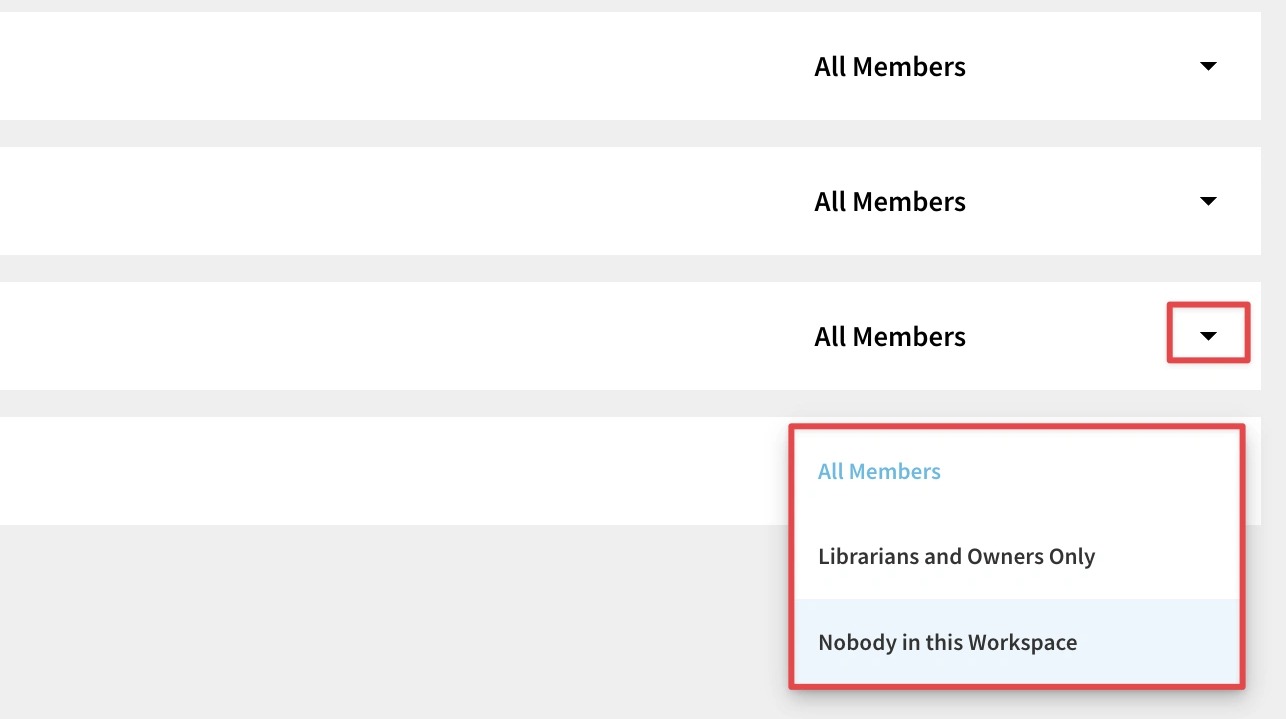
Every one of the nine guardrails uses the same dropdown in the WHO HAS ACCESS? column, with the same three choices. Learn them once here and the rest of the walkthrough is just deciding which one fits each feature.
- All Members — everyone in the workspace can use this feature. This is the most open setting.
- Librarians and Owners Only — only your admins can use it and regular team members won't see it. This is the middle ground! When you're unsure whether to open a powerful feature to the whole team, this middle setting lets your admins try it first, build a point of view, and decide later.
- Nobody in this Workspace — the feature is turned off for everyone, admins included. This is the fully closed setting.
That's the whole vocabulary. As you go feature by feature, you're really just asking one question each time: should this be open to everyone, limited to admins, or off entirely?
Comments
Article is closed for comments.